Buy anything from 5,000+ international stores. One checkout price. No surprise fees. Join 2M+ shoppers on Desertcart.
Desertcart purchases this item on your behalf and handles shipping, customs, and support to Japan.
⚡ Upgrade your network, upgrade your life!
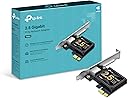
The TP-Link TX201 PCIe Network Card delivers ultra-fast 2.5 Gbps Ethernet speeds, supporting a broad range of operating systems including Windows and Linux. Its auto-negotiation feature ensures optimal connectivity across multiple speeds, while Wake on LAN adds remote management convenience. Designed for versatile installation with included brackets, it’s backed by a 2-year warranty and 24/7 support, making it the smart choice for professionals seeking reliable, high-performance networking.


| ASIN | B0BG685PKM |
| Best Sellers Rank | #4 in Internal Computer Networking Cards |
| Brand | TP-Link |
| Built-In Media | 2.5 Gigabit PCIe Network Adapter (TX201), Resource CD, Standard/Low-Profile Brackets |
| Color | Black |
| Compatible Devices | Desktop |
| Compatible Operating System Family | Linux, Windows |
| Customer Reviews | 4.7 out of 5 stars 2,109 Reviews |
| Data Link Protocol | Ethernet |
| Data Transfer Rate | 2500 Megabits Per Second |
| External Testing Certification | Não aplicável |
| Hardware Interface | Ethernet |
| Item Dimensions L x W x H | 4.76"L x 3.07"W x 0.85"H |
| Item Type Name | Network card |
| Item Weight | 1.76 ounces |
| Manufacturer | TP-LINK |
| Mfr Part Number | TX201 |
| Minimum Required Operating System Version | Windows 7 |
| Model Number | TX201 |
| Product Dimensions | 4.76"L x 3.07"W x 0.85"H |
| UPC | 840030707834 |
| Warranty Description | 2 year manufacturer |
J**L
Highly recommend
Works like it should and gets good and stable speeds. Very easy to install and I would highly recommend.
K**Y
Solid 2.5Gb Upgrade for Unraid
I picked this card up to upgrade an Unraid server built on an older gaming motherboard. The onboard NIC was limited to 1Gb, and since my new internet service provides 2Gb, I needed a reliable 2.5Gb card to take full advantage of the speed. It was recognized instantly by Unraid with zero configuration required. I installed it in a lower PCIe slot to give it plenty of breathing room, which should help with airflow and keeping it cool. Performance has been solid. Using a speed‑test Docker container, I consistently see results just under 2Gb, with most tests landing between 1.8 and 2.1Gb. For a simple drop‑in upgrade, this card delivers exactly what I needed at a very reasonable price.
R**K
Simple Install and it works great.
The integrated NIC circuit failed on a 7YO Dell Studio PC that I infrequently use but do keep the s/w updated. Without a network interface, updating the s/w was difficult. I found an empty PCIe slot on the MoBo and gave this TP-Link 2.5GB NIC card a try. It worked perfectly. Win11 recognized it and loaded the necessary driver and I was up and running in a matter of minutes. I did update the driver after I confirmed everything worked, using the supplied mini cd but in hindsight, I’m not sure that was necessary. I would recommend this card to a relative or friend if they needed a NIC card.
S**N
Blazingly fast card
This card is a beast. Installation was plug‑and‑play, and my network speeds instantly jumped to full 2.5Gb performance. Zero driver issues, rock‑solid stability, and no heat problems. Perfect for NAS setups, gaming rigs, or high‑speed home networks. This saves time in setup and maintenance like nothing else.
A**7
Works but needs updated Realtek driver to address sleep mode issue
I had no issues installing the card itself and getting it to perform as described in the product description, and I do see greater than 1 Gb/sec download speeds on my PC with this card (when connected to the 2.5 Gbe port on my router) when testing with Speedtest. The only thing that I had to deal with (which is why I knocked it down a star) is that, when installed on a Windows 10 PC and using either the generic Windows 10 built-in ethernet driver or the TP-Link sourced driver, I discovered that if I use sleep mode to turn off my PC the LAN port on the card will turn off--meaning, when I subsequently wake up my PC from sleep mode it will fail to automatically reconnect to my router (and thus, to the internet). I narrowed it down to it most likely being an Ethernet driver issue because when I was using the built-in Intel LAN controller on the motherboard my PC had no problem automatically re-establishing a LAN connection to my router when I woke it up from sleep. Figuring that it was most likely an issue with the ethernet driver I tried an updated driver I downloaded from the TP-Link website--still the same issue, and yes this is even though I went into Windows Device Manager and unchecked the box for "Allow the computer to turn off this device to save power" (more on that part in a moment). I then tried the Realtek ethernet driver for it (downloaded from Realtek's website)--I first tried the "Win10 Auto Installation Program (NDIS) - Not Support Power Saving" driver since I was thinking I don't want power saving because I don't want my ethernet card to go to sleep and thus turn off; you'd think that with that description on the download page it should work--nope, same behavior. I then figured what have I got to lose, and went ahead and downloaded the "Win10 Auto Installation Program (NDIS)" driver--holy smokes, this one apparently did the trick because now when I wake up my PC from sleep the TP-Link LAN card successfully automatically reconnects to my router and establishes an internet connection once again! Now back to the part about unchecking the box for "Allow the computer to turn off this device to save power"--oddly enough, with the correct driver in place I (still) had to actually check the box for this setting in order for the TP-Link card to automatically reconnect to my router after waking up my PC from sleep; if I unchecked it, the unwanted behavior returned even with the correct driver in place. Note--you can still leave the box for "Allow the device to wake the computer" unchecked. I spent hours trying all kinds of different suggested solutions that were offered up on the internet to fix this issue, and am glad I was finally able to figure it out; without this solution/fix my only options were to either do a manual "disable/enable" of the connection in the Windows 10 network settings or reboot my PC (doing the latter would make it pointless to put my PC in sleep mode to begin with). Hopefully this helps out someone who's running Windows 10 and utilizes sleep mode to turn off their PC.
A**X
Does Meet Expected speeds and quality.
Works great and has an easy fast Installation, highly recommend.
A**N
Great value for the price
I've purchased 5 of these for my Lenovo Tiny PC servers in my homelab setup as I have a Trendnet 2.5GB switch. These cards are excellent value for the money. Linux, HomeAssistant, and Windows all recognized them immediately and got them running almost instantly. Great plug-n-play solution to upgrade network speed of your devices.
K**R
POST/boot hang after installation
I ran into a weird POST/boot hang after switching to an ASRock Z490 Phantom Gaming 4/ac and adding a TP-Link TX201 2.5GbE PCIe NIC. With the TX201 installed, the machine would sometimes refuse to boot / hang during POST. What fixed it I put a small piece of tape over PCIe edge connector pins B5 (and even B6) on the NIC. After that, the system booted normally and the card worked fine in the OS. Why this works (the reasoning) PCIe has some “old-school” pins that the motherboard uses before the OS ever loads: B5 = PRSNT2# (presence detect) This is part of the hardware “card present / lane width” detection logic. If a motherboard BIOS/UEFI is picky (or buggy) during PCIe enumeration, a device can cause the firmware to stall while it’s trying to validate presence/configuration. By isolating B5, you’re basically forcing the board to be less strict about that early presence-detect logic and letting PCIe link training/device enumeration complete in a different code path. In plain English: you’re bypassing a firmware edge case that can hang POST. “But the TX201 says PCIe 2.1… why would this happen?” “PCIe 2.1” on many add-in cards is largely a compatibility claim, not a guarantee the device behaves like a 2008-era card electrically/firmware-wise. The TX201 is an Intel 2.5Gb controller-based NIC (varies by revision), and modern PCIe devices can still trigger weird BIOS timing/initialization issues on certain boards/BIOS versions. This is usually a UEFI enumeration bug, not the NIC being “too new” or “too high-end.” Why it still worked even when I taped B6 (+12V) B6 is +12V slot power. I taped B5 and B6 and the NIC still worked, which tells you something useful: Many low-power PCIe cards (NICs, USB cards, etc.) run entirely from the 3.3V rail provided by the slot and barely (or never) use slot 12V. So disconnecting B6 (+12V) didn’t matter for this NIC because it’s likely 3.3V-powered internally. That also reinforces that the original issue wasn’t “power” — it was detection/initialization during POST. Why this matters (and why it can save you money) If your system won’t boot with a NIC installed, it’s easy to assume: “My motherboard won’t support high-end / 2.5Gb / newer NICs.” But this kind of hang can be a firmware edge case during PCIe enumeration, not true incompatibility. A simple presence-detect workaround (taping B5) can get you booting and running normally without buying a different motherboard or NIC. Note / caution This is obviously a DIY hack: Prefer taping B5 only long-term (leaving power pins alone is cleaner). Also worth trying BIOS updates, toggling PCIe Gen settings (Gen3/Gen2), or disabling fast boot, but the tape fix can confirm it’s an enumeration/presence-detect problem quickly.
M**A
works on truenas scale
works great on my truenas scale with nuc 9 extreme
O**A
Simple 2.5G upgrade, but don't forget the Realtek drivers!
I picked this up to finally get the most out of my high-speed internet plan. Most motherboards are still stuck with standard 1G ports, and this card is a very affordable way to bridge that gap. The Setup: Installation was a breeze. It’s a small card that fits easily into a PCIe x1 slot, and it even includes a low-profile bracket if you’re working with a slim desktop case. It’s built well and feels like a quality piece of hardware that should last. One Important Tip: When I first plugged it in, Windows recognized it immediately, but I noticed a weird issue: my download speeds were great, but my upload speeds were stuck and wouldn't hit that 2.5G mark. I found that the "standard" drivers Windows installs automatically aren't quite enough. To fix this and truly unlock the full 2.5G upload speed, go directly to the Realtek website and download the latest drivers for the RTL8125 chipset. As soon as I installed the official drivers from the source, the upload cap vanished and everything worked perfectly. Final Verdict: It’s a fantastic, reliable card for the price. Just save yourself the troubleshooting time and grab the drivers from Realtek right away
G**2
Muy bueno
Mi internet no es muy rápido pero se siente más estable con este adaptador de 2.5GB.
S**I
Good Value Product
excellent product, onboard nics cant handle jitter as these do!
A**R
Fast network card. Plug and play!
A beast network card from a reputable network brand! This was needed to upgrade my slow motherboard LAN, which caps out at only 980 Mbps, and my modem has a 2 Gbps plan where a faster card can make use of my bandwidth. The installation was very easy as it just plugs into the smaller PCIEX1_1 slot with no problems. As soon as you boot into Windows 11, the drivers will automatically get installed, so the internet will work a few minutes after reboot. It’s plug and play! It works so well, and I’m getting very fast 2 Gbps speeds. Faster downloads hooray!
Trustpilot
2 weeks ago
1 month ago