Desertcart purchases this item on your behalf and handles shipping, customs, and support to Japan.
๐ฅ Dominate the game, own the room.
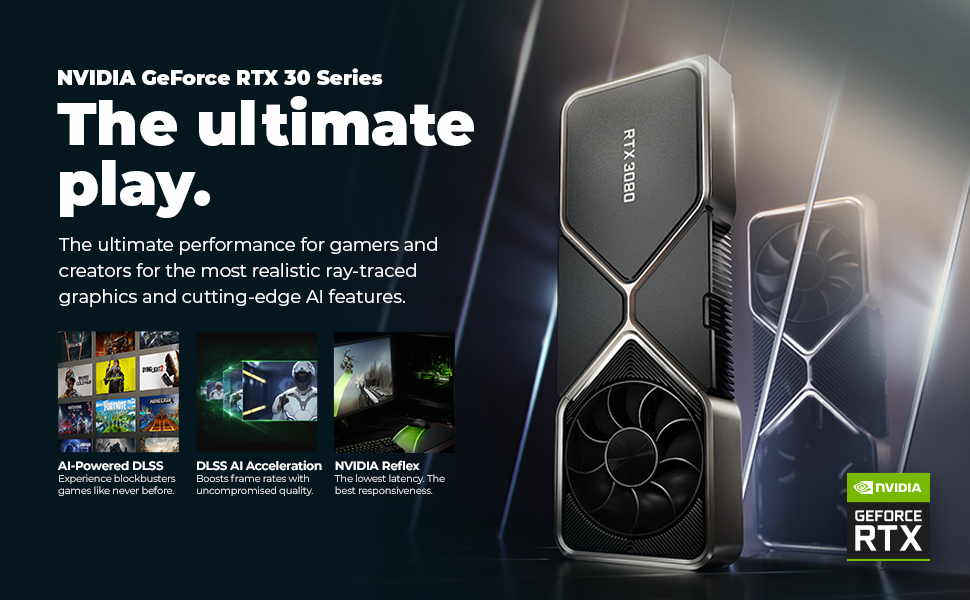
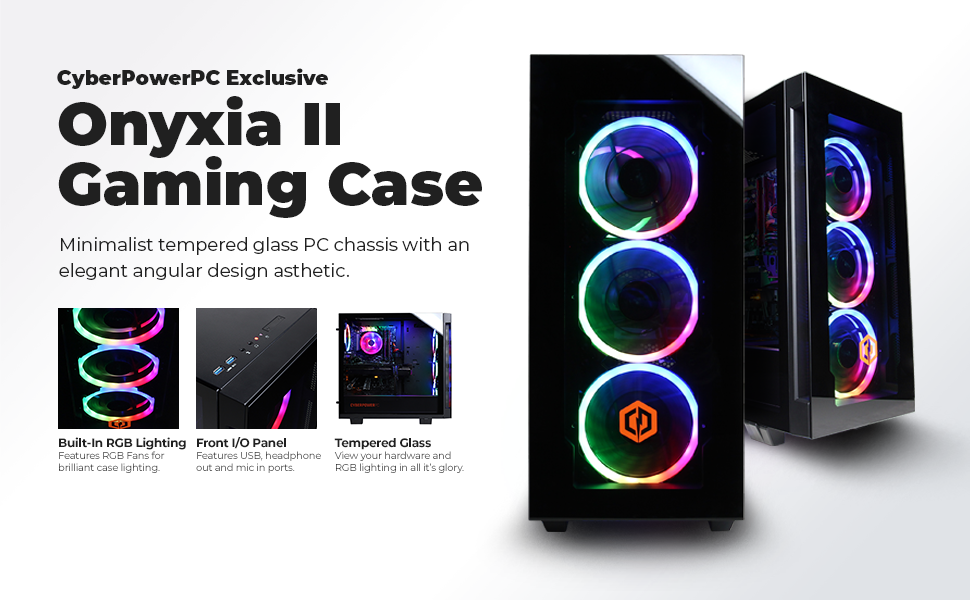
The CYBERPOWERPC Gamer Xtreme VR Gaming PC combines a powerful Intel Core i5-11600KF processor with a high-end NVIDIA RTX 3060 12GB GPU, 16GB DDR4 RAM, and dual storage (500GB NVMe SSD + 1TB HDD) to deliver exceptional gaming and multitasking performance. Featuring advanced connectivity options, a sleek tempered glass case with RGB lighting, and Windows 11 Home pre-installed, itโs designed for gamers who demand speed, style, and immersive experiences.


| Additional Features | Microphone |
| Asin | B09DHTWR5N |
| Aspect Ratio | 16:9 |
| Best Sellers Rank | #132,161 in Computers (See Top 100 in Computers) #614 in Desktop Computer Towers |
| Brand | CyberpowerPC |
| Built In Media | Desktop, Keyboard, Mouse, Power Cord |
| Color | Black |
| Compatible Devices | No Compatible Devices |
| Connectivity Technology | Ethernet, USB, Wi-Fi |
| Cooling Method | Air |
| Cpu Model Number | i5-11600KF |
| Customer Reviews | 4.3 4.3 out of 5 stars (1,331) 4.3 out of 5 stars |
| Display Resolution Maximum | 7680x4320 |
| Display Type | LCD |
| Global Trade Identification Number | 00811842074681 |
| Graphics Card Interface | PCI Express |
| Graphics Card Ram | 12 GB |
| Graphics Coprocessor | Nvidia Ge Force Rtx 3060 |
| Graphics Description | Dedicated |
| Graphics Ram Type | GDDR6 |
| Hard Disk Description | HDD |
| Hard Disk Interface | Serial ATA-600 |
| Hardware Interface | DisplayPort, Ethernet, HDMI, USB, USB 2.0 |
| Human Interface Input | Keyboard |
| Item Dimensions | 60 x 32 x 60 centimeters |
| Keyboard Description | Gaming |
| Keyboard Layout | QWERTY |
| Manufacturer | CYBERPOWERPC |
| Memory Clock Speed | 1.88 GHz |
| Memory Slots Available | 3 |
| Memory Speed | 3.9 GHz |
| Memory Storage Capacity | 1000 GB |
| Model Name | Gamer Xtreme VR |
| Model Number | GXiVR8480A10 |
| Model Year | 2021 |
| Native Resolution | 1920 x 1080 |
| Number Of Component Outputs | 3 |
| Operating System | Windows 11 Home |
| Personal Computer Design Type | Computer Tower |
| Power Consumption | 295 Watts |
| Power Plug Type | Type A - 2 pin (North American) |
| Processor Brand | Intel |
| Processor Count | 6 |
| Processor Series | Core i5 |
| Processor Socket | LGA 1200 |
| Processor Speed | 3.9 GHz |
| Ram Memory Installed | 16 GB |
| Ram Memory Maximum Size | 128 GB |
| Ram Memory Technology | DDR4 |
| Ram Type | DDR4 SDRAM |
| Resolution | 1920 x 1080 |
| Screen Size | 0.1 |
| Speaker Description | 7.1 channels |
| Speaker Type | support for 7.1 channel audio |
| Specific Uses For Product | Gaming |
| Specification Met | [YES] |
| Style Name | i5-11600KF | RTX 3060 |
| Total Expansion Slots Quantity | 1 |
| Total Number Of Hdmi Ports | 1 |
| Total Usb Ports | 8 |
| Unit Count | 1 Count |
| Upc | 811842074681 |
| Video Output | HDMI, DisplayPort |
| Video Output Interface | HDMI, DisplayPort |
| Video Processor | Intel |
| Wireless Compability | 802.11ab |
| Wireless Network Technology | Wi-Fi |
| Wireless Technology | Wi-Fi |
User
The BEST gaming PC you can buy at this price!!
This is my first gaming PC that I've bought and I love it!! This PC is amazing especially in today's market!! For the price of $1479 (at the time of this review), this is the BEST and most affordable gaming PC you can buy. I have just recently got this PC so I cannot comment on the long term usage but so far it is running very smoothly and I have not experienced any issues. This PC is perfect for gaming, everyday usage, entertainment and etc. Very easy to setup, the included instructions are very clear to understand, the PC runs very quietly, and it all goes above my expectations. Starting up the PC for the first time went very smoothly and setting up Windows was very easy too.In today's market, its very hard to find graphics cards, especially the GeForce RTX 3000s series, so the fact that this PC has a GeForce RTX 3060 available at this price point is an amazing deal! This has got to be the best PC you can buy in 2021 especially for this price. The CPU is very fast, works very smoothly and even while playing games, it performs very well. The 16 GB ram running at 3000 mhz in dual channel is amazing too.For those wondering what the full specs of this PC are:- Gigabyte B560 motherboard- Intel Core i5-11600KF 3.9GHz- Crucial Ballistics 3000mhz 16GB DDR4 (2 x 8gb)- EVGA GeForce RTX 3060 12GB- 500 GB WD NVMe SSD- 1TB Seagate BarraCuda 7200rpm HDD- Apevia 600w 80+ Gold PSU- Windows 11 HomeMy only concern is the CPU cooling fan, it's a Cooler Master brand but I think it's one of the cheaper ones. I would suggest replacing it to something much better because this PC does reach temps of up to 90 C when playing heavy games like New World at max settings. I am however able to get above 60 fps, so its just the cooling that's a concern but I will most likely be looking to switch the CPU cooling to something more better and efficient. The PC also maintains an average temp of just over 50 C when playing games like Minecraft. So it's just the more heavy games like New World where CPU cooling is an issue. Other than that, everything else works perfectly. Also another tip, there's no software installed in Windows to control the RGB lights on the PC, in order to control the lights, you can do it from the BIOS settings or with the included remote which is very cool and convenient. Overall, I would highly recommend this gaming PC because the price is very good especially for what you're getting with the specs, and it performs very well. I am very satisfied with my purchase. Thank you CyberpowerPC and Amazon!!
User
A great gaming rig!
I bought a Cyberpower not too many years ago, but it was time for an upgrade, especially since that computer wasn't able to upgrade to Windows 11... A simple fix, but decided a new computer was in order anyway. I'm not the most "up to date" gamer in existence, I play Counter-Strike GO and Madden 22 and a few new but not AAA games, but the games that I've tried running and cranking up all of the settings left me pretty happy; they all run perfectly well. I'm also pretty into emulation, and I've noticed a considerable upgrade in performance on just about every emulator I've tried: PCSX2, Dolphin, Yuzu, Xemu... I was pretty impressed.Another thing I was surprisingly impressed by is Windows 11. It looks and runs great, and isn't too different from Windows 10, which I've used for a long time now. I really like the UI; it's simple, but looks great. Of course, none of this has much to do with the system itself, but I would legitimately recommend Windows 11. At any rate, it wasn't like the horrible switch from XP to Vista, or Windows 7 to Windows 8.When it comes to goodies, you get a surprisingly high quality keyboard+mouse combo, with the keyboard being exceptionally nice. I doubt that it's anything overly fancy when it comes to the tech inside it, but it feels very satisfying to type on, especially coming fresh off a mechanical keyboard that clicked so loud I swear it was going to drive me to the asylum when I had to type for extended periods of time. You also get a mouse, and while it feels, looks, and works fine, I decided to stick to my vertical mouse that I got about a year or so ago... Seriously, if you're a gamer, you should check one of those out. To my surprise, there was actually a remote to flip through the colors of the fan lights, which is surprising only because the Amazon page here doesn't mention that at all. The fan lights of my old Cyberpower rig got extremely dim over the years, so I plan to just have the lights on occasionally to save them from stress.As far as Cyberpower is as a company, I have nothing but good things to say about them. You'll see some horror stories if you go to Reddit and what not, but both Cyberpower computers I've purchased were shipped perfectly intact, and my last computer still works to this today with minimal upkeep needed throughout the years. The only thing I did in the over 4 years I had it was add some thermal paste to the CPU and general dusting, and it still works perfectly well, so if this new computer chugs along the same way, I'll be more than satisfied. I decided to leave the tech support at 0, and it's not because it's terrible; I just haven't ever had to get in touch with them. Ever. I don't think it would be fair for me to rate it.Overall, I'm quite satisfied with this computer and very satisfied with the purchase. Now, if you don't mind, I'm going to go install a few more games to try...
User
Excelente pc a excelente precio
Una ganga que consegui en "Buen Fin" ya que solo me costo 20k pesos esta maquina, y he de decir que estoy mas que contento con lo que compre.Me preocupaba un poco los comentarios en ingles que decian que el ventilador era un i71C Cooler Master y que no era muy bueno para controlar la temperatura del pc pero creo que Cyberpower vio esto y lo decidieron cambiar ya que el que me llego fue el MasterLiquid ML120R RGB (creo que es ese modelo XD) y el problema se resolvio ya que no he tenido problemas al correr mis juegos ni con las temperaturas, eso habla muy bien de Cyberpower
User
Works for me
Going 5+ years strong now, only had to replace the power cord. I haven't upgraded anything and the only game I got a warning on was subnautica 2 that it'd need an upgrade. Mouse and keyboard work, only now just upgraded the mouse.
User
Great value, awesome computer, but you should change the CPU cooling fan immediately
I bought this computer because:a) I wanted a new computer that could handle video editing and intensive tasksb) I was tired of my old, slow Xbox One for gamingThis computer is great - it looks really cool, and it is a pleasure to use. However, if you order this computer, you really should replace the CPU fan. This seems a little bonkers to me, but you can turn it into an opportunity perhaps (the experience of building part of your machine). The price justifies these extra steps in my opinion.As soon as I received it, I completed all the necessary Windows Updates, installed Warzone and all necessary peripheral apps (NVIDIA experience, control panel etc). After playing the game for a few minutes the screen would turn black and it would become unresponsive.If you want to take the easy route, I believe the Cooler Master Hyper 212 would work, or a similar model, for air cooling.I decided that I wanted to install an AIO liquid cooling system so that I could have the option of overclocking this baby in the future, keeping temps low, and having it be quiet.I have very little experience working on computer hardware, so this was a journey for me.First of all, you can really only fit a 120 mm fan in this case. So this is important to note.I bought a Cooler Master ML120L V2 RGB and with tax it was CAD$90.The installation is relatively straightforward once you have all the information I'm about to give you.-Take off the front and back panels of the computer case so you can access everything. Put it in a comfortable place so you can work on it without destroying your neck/back.-Disconnect power and cables.-Remove the stock CPU fan and the rear ventilation fan with a Philips head screwdriver. Clean the remaining Thermal Paste off your CPU with rubbing alcohol and a cloth/paper towel (ideally a decent cloth with no fibers that come off) and perhaps clean off your stock CPU fan so you don't get it all over stuff while it's laying around your house.-Assemble the included Intel mounting bracket onto the pump. There are little grooves on both pieces of the mounting bracket that fit over notches on the pump. You'll be able to tell when it fits correctly.-Attach the included fan onto the radiator. The direction of the fan should be pushing air through the Radiator.-Note that you already have a mounting bracket installed on the back of the motherboard from the stock CPU Cooler Master fan.-Install the mounting screws onto the bracket (the silver (hex?) ones) on the front side of the Motherboard.- Apply a pea-sized dab of the included thermal paste onto your CPU, in the middle of it.- determine the correct orientation of the pump. I would also recommend running the two wires from the pump behind the top right mounting fastener for cable management reasons (see picture) and then mount the Pump onto the CPU. You can wiggle it around a little to spread the thermal paste, then screw in the 4 nut-type fasteners. IMPORTANT - If you don't apply the thermal paste correctly, it will heat up under load and will behave as though it did with the stock fan (black screen/"no signal", and the fan turns on to the max setting and sounds like a jet engine).- Plug the pump's power cable of the AIO system into the CPU_FAN terminal on the motherboard. (pay attention to your cable management). The pin on the left will remain exposed, this is fine and normal.- Plug the radiator Fan into the SYS_FAN1 plug (these can only be plugged in one way with the plastic adapters). There is no PUMP terminal on this Motherboard.- Connect the included LED wire adapter cable to both LED cables (1 from Pump, 1 from radiator fan) and note that the arrows on both ends of the connectors should point to each other to ensure you've plugged them together correctly. Connect the female end of this wire connector to the LED_C1 terminal on the motherboard (see pictures). I don't think there's a way to determine which orientation is correct when you plug this wire into your motherboard, so if the fan and pump don't light up when you fire up your computer, turn it off and remove the LED_C1 cable and plug flip it around and plug it back in.- At this stage I would then mount/screw the radiator into the back of the case with the included screws.- Later on I decided that I was going to install the stock case cooling fan onto the TOP of the case to pull air out and increase airflow within the case. It also looks cool, and you just plug it into where it was originally plugged into (the same connections). It's a little tight but it will fit.You should now have all the hardware installed and connected to your computer.- Plug in the power cable and wires to your computer.-Boot the computer. Press F12 right away (when prompted) to enter BIOS.-Click on "Enter Setup"-Bottom right of the screen, click "Fan Setup" or hit F6.-Click on "CPU Fan" and change the options on the right.CPU_Fan Speed Control - Full Speed (this ensures your AIO pump runs at full speed all the time).Fan control Use temperature input- CPU- Click on "SYS_FAN1" and change optionsSYS_FAN1 Speed Control - you can just set this to normal or silent, maybe play around with it a bit. I created a manual curve but this is not necessary and I may change it later.Fan Control Use Temperature Input - CPU ****ImportantYou may want to Save this Fan profile in a separate slot... just click Save Profile.-Click on Back, then "Save & Exit" and confirm.You should now be all set.A few notes - I have read reviews of the cooler master unit I installed that noted the super loud fan, which is incredibly loud when you don't install the thermal paste correctly. I have played a bunch of warzone and it has never kicked into high gear after I re-installed the thermal paste. It seems quiet. The temperature maxes out around 61 degrees Celsius for me while playing warzone.To monitor your temps, I downloaded a program called Speccy. You can monitor temps while in windows.To control the RGB lights on the AIO unit you can download RGB color fusion 2.0. It won't be synced to the stock lights but it still looks cool.UPDATE** I also had to install MSI afterburner to control the GPU fans. I kept getting the black screen of death / unresponsiveness. I think the GPU was overheating because the built-in fans weren't turning on or enough. I run that program in the tray all the time now, and the computer has been working great.I posted this review because I hope it will be helpful, not because anyone asked me to. I am excited about my new setup.
Trustpilot
2 months ago
2 weeks ago