Desertcart purchases this item on your behalf and handles shipping, customs, and support to Japan.
🌍 Stay connected everywhere, because your Wi-Fi should travel as fast as you do!
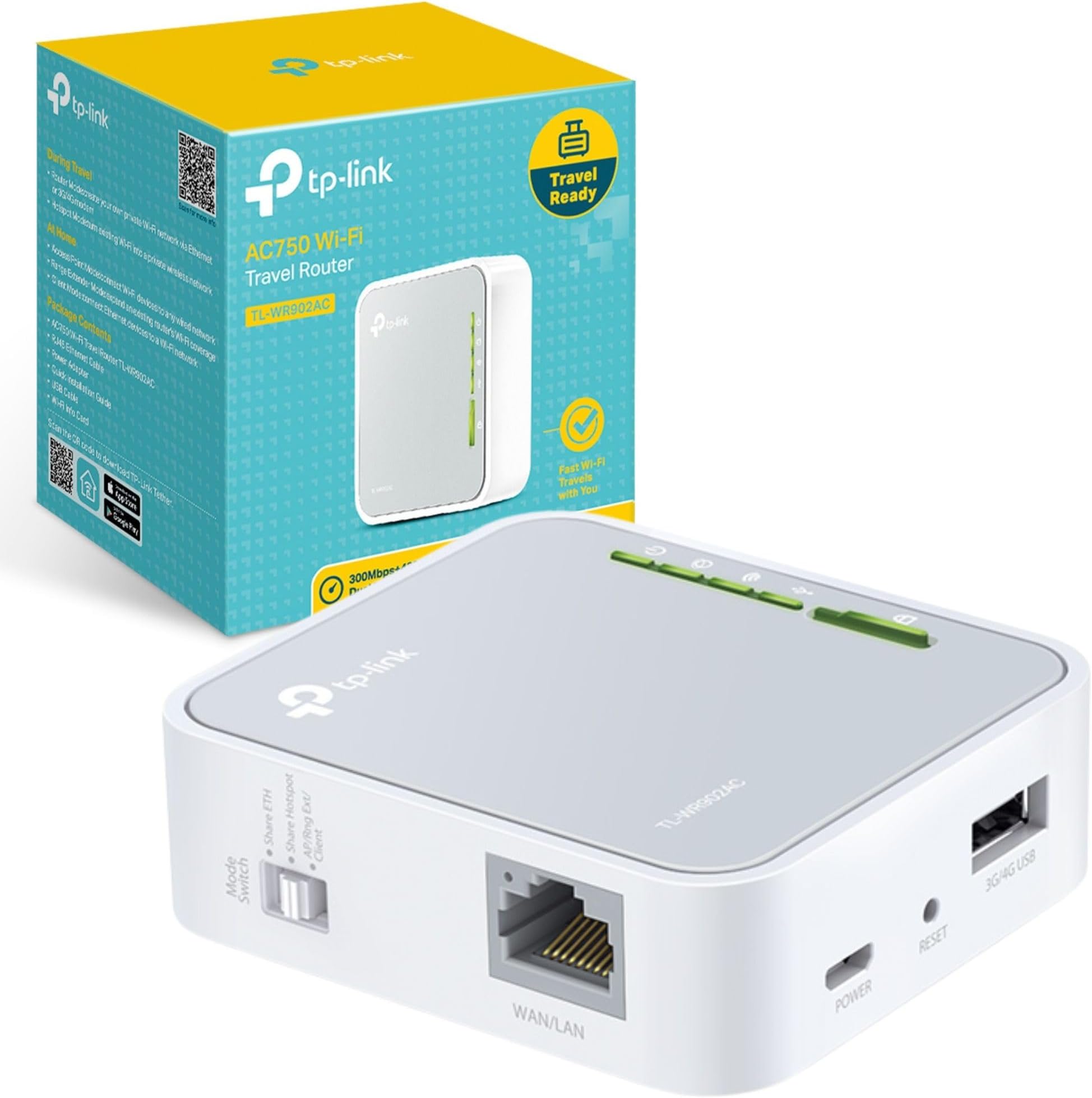
The TP-Link AC750 Dual Band Wi-Fi Travel Router (TL-WR902AC) is a compact, lightweight device designed for professionals on the move. Supporting dual-band AC750 Wi-Fi, it delivers fast and reliable internet across 2.4GHz and 5GHz frequencies. With one switch, it toggles between five modes—Router, Hotspot, Range Extender, Client, and Access Point—offering versatile connectivity options. Its USB 2.0 port supports 3G/4G modems and file sharing, while the built-in WPS button and UK plug ensure quick, hassle-free setup. Perfect for travelers, remote workers, and digital nomads seeking seamless internet access anywhere.
| ASIN | B01NAYG15H |
| Antenna Location | Home, Travel |
| Antenna Type | Internal |
| Best Sellers Rank | #29,180 in Computers ( See Top 100 in Computers ) #491 in Routers |
| Brand | TP-Link |
| Built-In Media | Ethernet Cable |
| Color | white with black accents |
| Compatible Devices | Laptop, Personal Computer, Smartphone, Tablet |
| Compatible devices | Laptop, Personal Computer, Smartphone, Tablet |
| Connectivity Protocol | Wi-Fi |
| Connectivity Technology | Ethernet |
| Control Method | Touch |
| Controller Type | Switch |
| Coverage | For personal use |
| Customer Reviews | 4.2 out of 5 stars 911 Reviews |
| Data Transfer Rate | 150 Megabits Per Second |
| Frequency | 5 GHz |
| Frequency Band Class | Dual-Band |
| Frequency band class | Dual-Band |
| Global Trade Identification Number | 06935364095673 |
| Has Internet Connectivity | Yes |
| Has Security Updates | No |
| Is Modem Compatible | Yes |
| Item Dimensions L x W x H | 6.7L x 2.2W x 7.4H centimeters |
| Item Weight | 2.12 Ounces |
| LAN Port Bandwidth | 150 megabits_per_second |
| Manufacturer | TP Link |
| Maximum Upstream Data Transfer Rate | 150 Megabits Per Second |
| Mfr Part Number | TL-WR902AC |
| Model Name | TL-WR902AC(UK) |
| Model Number | TL-WR902AC |
| Model name | TL-WR902AC(UK) |
| Number of Antennas | 3 |
| Number of Items | 60 |
| Number of Ports | 1 |
| Operating System | Linux |
| Other Special Features of the Product | WPS |
| Router Network Type | hybrid |
| Security Protocol | WPS |
| Special features | WPS |
| Unit Count | 1.0 Count |
| Wi-Fi Generation | Wi-Fi 5 |
| Wireless Compability | 2.4 GHz Radio Frequency, 5 GHz Radio Frequency, 802.11ac, 802.11b |
| Wireless communication standard | 2.4 GHz Radio Frequency , 5 GHz Radio Frequency , 802.11ac, 802.11b |
A**A
Good as Expected!
This gadget as its described!, perfect!
F**S
Fonctionne
Utilisé de manière efficace pour réaliser une passerelle internet entre un réseau "guest" d'une maison de retraite et un cadre image dont l'interface ne permettait pas une connexion au réseau "guest". Si l'appareil fait le job, l'application dédiée ne m'a été d'aucun secours. J'ai dû me faire aider par l'IA Gemini pour réussir à configurer la connexion (et par une tablette Android)
P**A
Funktioniert
Macht was es soll.
A**N
Versatile little travel WiFi router
For its size this little travel WiFi router is great. It support both 2.4G and 5G WiFi bands and different usage scenarios which are easy to switch between using a physical button on the side of the device. The device is tiny for what it can do and low power enough that it could be run from a reasonable sized power bank instead of the supplied mains AC adapter. Configuration in router mode (with the switch set to Share ETH) was a breeze using TP-Link's Tether app. In the other modes you have to resort to using the admin console on a web browser which is a shame as being able to do it all from Tether would simplify things. Also your configuration from router mode isn't retained when switching modes and when you switch back any custom WiFi network changes mat be undone by switching modes and using the admin console in the web browser session. The device only supports a single web admin session too, so changing WiFi settings means you then have to power cycle the device to be able to log in to the admin console again. The device also supports a guest WiFi network, so you can create a private wireless network for your trusted devices on the main WiFi, and selectively share internet access with others via guest WiFi without them having access to your private network. It does NOT include any direct way of connecting to the internet itself. To do that you need an internet router you can connect to it using the wired ethernet port, or you need to buy a USB modem (aka a dongle) to plug into its USB port (i.e. with SIM slot and mobile data contract). USB modems aren't that plentiful either and most only work on 3G/4G mobile networks (I haven't found a 5G one at all at the time of writing). It can also work in shared hotspot mode, where all your devices are connected to the device and it connects to public WiFi or a mobile data WiFi router. This can significantly simplify connecting your devices up when travelling, but be aware that it may open your WiFi data to snooping if ultimately going through a public WiFi without using a VPN as well. My one real gripe about the device, and hence it losing a star, is speed. Despite saying it supports fast WiFi, my tests showed it topping out at 50Mbps on 2.4G WiFi and at 95Mbps on 5G WiFi connections. As more devices are added the speeds drop further too.
P**F
Brilliant for accessing captive portals on public networks
Bought this for my mum to use during her long term stay in hospital at the moment. The 'Patient Wifi' doesn’t quite reach her room, so I bought this to extend the wifi so she can access the internet on her phone and tablet. It’s brilliant! The beauty with this Router - and the primary reason I bought it - so it can access captive portals on the web browser in order to get online. I initially tried using my own home-use wifi repeater, but for whatever reason, it can’t access the captive portals on public wifi networks, but the TP Link Travel Router does! Once the parameters of the Travel Router are set up on the TP Link Settings Page ( http://192.168.0.1/ ), it’s a brilliant wee box of tricks and works super on public wifi points. I left a sticky note on my Router, so if it’s discovered by patients/ staff, they know what it is and who it belongs to. Mum now has superb internet access and can communicate with family online etc as much as she wants now. Happy Bunny. Recommend. ------- UPDATE 27th April 2022 Router still going strong 👍 Bought a second one for myself to use when travelling and tried out the different functions (AP, client, Repeater). They all do their job well once you set up the correct parameters on the settings page through your browser. TP Link makes it easy for any person to use, whether you're super tech savvy or a luddite. The settings interface guides you through setting up your router, step by step, or of you're an advanced user, you can set it up manually. All the information you need about the router is there on the screen.
A**N
Excellent when working. Good range and dual band wifi. Poor support for 3G/4G USB mobile devices. Documentation not good.
I have had this for a few weeks and have by no means tested everything but I will update this review as I go along. The model I received was the TL-WR902AC(EU) Ver 1.0 (with UK plug on the mains adapter). There are other versions out there (like EU ver 3 and US). Also, this model has a recent firmware update available from the tp-link UK website which I have applied. The micro USB socket for the power is set back in the unit and I have found some USB cables have a B plug that isn't quite long enough to stay connected. YMMV The first thing to do is check that the built in Wifi networks have a password. Set the switch to ETH and switch it on. Don't plug it into a network. When the unit is ready, use a tablet or laptop to connect to the WR902 wifi. If it doesn't ask for a wifi password, visit the WR902 admin page tplinkwifi.net and login. Check the Wifi settings and make sure both the 2.4G and 5G networks have a secure password set. I didn't do this and just plugged it into the home network. The WR902 promptly created 2 completely open unprotected Wifi access points. :( :( The wifi range of the WR902 is surprisingly good even though it has no external aerial. However, the unit has to be powered externally (there are no batteries) although it can be powered from a USB port (on your laptop, or car socket for example) so you don't require a mains socket. There was no manual provided. Just a quick guide. I did find a bigger manual on the USA TP-Link website (but not on the UK one). The documentation is not good and neither is the support website. If things don't work as expected, you can spend a lot of time tinkering trying to make it work. Test scenarios: Share ETH switch setting: Wifi access to the internet via an existing (wired) network. Plug the WR902 into a handy RJ45 ethernet port on the network and switch on. After a couple of minutes the WR902 should provide 2.4G and 5G wifi access to the internet via the network. This works flawlessly. As long as the WR902 can get an IP address from the network there is no more to do. If the local network requires the WR902 to have a fixed IP address, you can use the WR902 admin page to enter it. Wifi access to internet via a 3G/4G mobile network. Instead of plugging the WR902 into an existing network, you can plug in a USB mobile dongle. However, the WR902 is very choosy about which USB mobile dongles it will talk to. It doesn't recognise my Vodafone K5160 4G dongle and it doesn't like my old K3520 3G dongle either. Luckily it likes a K4201 3G dongle. The WR902 takes several minutes to recognise and connect to the internet via the dongle. You will probably have to do some configuration via the WR902 admin pages to make it a plug and play process but it can be done. Share Hotspot switch setting: Wifi access to internet via a Wifi network. This seems a bit strange. Why would you use the WR902 to connect to a Wifi network? You can just connect your device directly. There are a couple of situations. 1) The hotel wifi only works in one part of the room but you want wifi in the whole room. Place the WR902 where it can connect to the hotel wifi and share the internet around the whole room. 2) The hotel wifi only works with one device. Use the WR902 as the device. it will share the connection with all your devices. Start up the WR902. After a couple of minutes you will be able to connect to the WR902 Wifi and log in to the admin page (URL = tplinkwifi.net). Choose Quick Connect. You can get the WR902 to scan the local wifi networks and choose the one to connect to. Enter the wifi password and continue. The WR902 will reboot and after a few minutes, the internet will be available. The good news is the WR902 remembers the last wifi network you connected to so if you are staying in the same hotel for a while, subsequent use is plug and play. Note: With both of the above modes, the WR902 creates its own LAN which it connects to the internet. Devices using the WR902 can network with each other, but are isolated from the LAN that the WR902 uses to connect to the internet. If you want to use the WR902 to extend your existing LAN, use the third switch position AP/Rng Ext/Client. More later.
Trustpilot
1 day ago
3 weeks ago