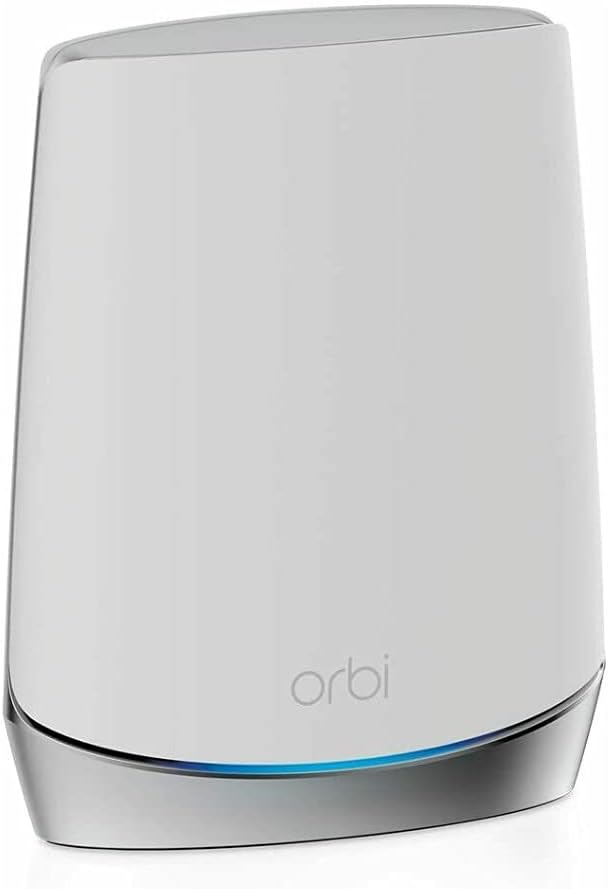
Desertcart purchases this item on your behalf and handles shipping, customs, and support to Japan.
🚀 Elevate your home WiFi game—coverage and speed that keep you connected everywhere!
The NETGEAR Orbi RBS750 is a WiFi 6 tri-band mesh satellite that extends your Orbi system’s coverage by up to 2,500 sq.ft, delivering speeds up to 4.2Gbps. Designed for seamless streaming, gaming, and conferencing, it integrates easily via the Orbi app and supports multiple devices with reliable, lag-free connectivity.
| ASIN | B088B9S52T |
| Antenna Location | Home |
| Antenna Type | Internal |
| Brand | NETGEAR |
| Built-In Media | One (1) Orbi Satellite (RBS750), One (1) 12V/2.5A power adapter, Quick start guide |
| Color | White |
| Compatible Devices | Gaming Console, Smart Television, Smartphone, Tablet |
| Compatible devices | Gaming Console, Smart Television, Smartphone, Tablet |
| Connectivity Protocol | wi-fi |
| Connectivity Range | 2500 Square Feet |
| Connectivity Technology | Ethernet, Wi-Fi |
| Control Method | App |
| Controller Type | Voice Control |
| Coverage | 2500 sq.ft. |
| Customer Reviews | 4.4 out of 5 stars 1,005 Reviews |
| Data Transfer Rate | 4.2 Gigabits Per Second |
| Frequency | 2.4 GHz |
| Frequency Band Class | Tri-Band |
| Frequency band class | Tri-Band |
| Has Internet Connectivity | Yes |
| Is Electric | Yes |
| Is Modem Compatible | No |
| Item Dimensions L x W x H | 24.8L x 19.7W x 15.2H centimeters |
| Item Weight | 1.22 kg |
| LAN Port Bandwidth | 4.2 gigabits_per_second |
| Manufacturer | Netgear |
| Maximum Upstream Data Transfer Rate | 2100 Megabits Per Second |
| Mfr Part Number | RBS750 |
| Model Name | RBS750-100NAS |
| Model Number | RBS750-100NAS |
| Model name | RBS750-100NAS |
| Number of Antennas | 4 |
| Number of Ports | 2 |
| Operating System | ZyNOS, Junos OS, Cisco IOS, or RouterOS |
| Other Special Features of the Product | WPS |
| Security Protocol | WPS |
| Special features | WPS |
| UPC | 606449146233 |
| Unit Count | 1.0 Count |
| Voltage | 100240 Volts |
| Wi-Fi Generation | WiFi 6 |
| Wireless Compability | 802.11n |
| Wireless communication standard | 802.11n |
M**T
Coverage area is limited for each unit
Good and fast, but coverage area are limited for each unit and barely leaves the room, you need to be near the unit to enjoy fast connection!
G**G
Advanced setup required
Can not syn my new satellite for 2 hours, After review and tried C&J review, my system work great now, thank you for the help, i repost his post. credit to him. anyone having this problem, follow the step and give this a shot, thank you. 5.0 out of 5 stars Advanced setup may be required. Reviewed in the United States on October 21, 2023 Verified Purchase I've had good luck with my Orbi 750 system but wanted to expand the coverage with this satellite. I spent over 2 hours trying to get this to sync with my system with no luck. This is what I ended up having to do, and id assume this will work for whomever runs into this issue. Start by plugging the new satellite into the Orbi router with an Ethernet cable. Plug the new satellite into power and wait for it to boot up (usually 2 minutes). Wait for the light on the satellite to turn blue and then turn off. At this point open a web browser and log into the Orbis interface (192.168.1.1) enter your username and password when prompted, then select attached devices and find the IP address of the new satellite. Once you've located the new satellites IP address open a new tab and enter the new satellites IP address into the address bar and login (Username:admin/password:password). Once you've logged into the new satellites web interface look for the firmware version and compare it to your existing Orbi firmware. If it doesn't match you need to manually update the new satellite firmware. Open a new tab and search RBS750 firmware. Find the firmware version that matches your current system from the Netgear support site only (not 3rd party). Once you've located the correct firmware download it to your desktop. When it's finished downloading extract the zip file to your desktop. The firmware file will end with .chk . Now go back to the browser tab for the new satellite and select firmware/update Firmware then select browse and navigate to the unzipped folder you downloaded and select the file ending .chk and update. This process can take up to 19 minutes. Once the satellite is finished and there is no light coming from the new satellite unplug it from your router and place where you want it and plug it back into power. After the light on the new satellite finishes blinking it should go blue for a moment then off. If the placement is poor you may get an amber light instead of blue and magenta if it's too far from the Orbi router. This is how I got mine to work, I hope this helps someone in the same situation. After all this it works great for me.
M**S
BEAWARE THIS IS ONLY 110V
The description says this is 100-240V, but the unit I got is only 110V. If you live in a place with only 220V, then this unit is NOT usable. I had to request a return, which is not a fun process. It is been three weeks now and the request is still pending...
R**S
Might need firmware update to sync satellite to router
The review from GUANGRONG ZENG under "Top Reviews from Other Countries" saved me. I made the mistake of buying the Orbi router/modem (CBR750) with no satellites, thinking my apartment was so small I wouldn't need a satellite. Big mistake, the wifi signal from the router in the living room did not reach the bedrooms in the back of the apartment. So I purchased the Orbi stand-alone satellite (RBS750). The instructions for syncing the satellite to the router/modem did not work at all (plugging the satellite in to an outlet and then pushing the sync buttons on the satellite and router). I kept getting the magenta light. So I followed the instructions from GUANGRONG ZENG (who got them from another reviewer). The only change I had to make, was that I found the specific IP address of my satellite in the Orbi app after I had connected the satellite via ethernet. I then entered Admin and Password as the username and password. It then took me to the page in the first image. Next step was update the firmware. I found my router's firmware version in the orbi app under router settings. Then I kept uploading the wrong file (CBR750 instead of RBS750). Once I get the right file uploaded, the firmware updated. See the second image. Then I refreshed and saw the third image. I then refreshed the Orbi app, and instead of saying "Satellites: 0 of 1," it now said "Satellites: 1 of 1." I have copied the original review below so that people can see all of the steps. Can not syn my new satellite for 2 hours, After review and tried C&J review, my system work great now, thank you for the help, i repost his post. credit to him. anyone having this problem, follow the step and give this a shot, thank you. 5.0 out of 5 stars Advanced setup may be required. Reviewed in the United States on October 21, 2023 Verified Purchase I've had good luck with my Orbi 750 system but wanted to expand the coverage with this satellite. I spent over 2 hours trying to get this to sync with my system with no luck. This is what I ended up having to do, and I’d assume this will work for whomever runs into this issue. • Start by plugging the new satellite into the Orbi router with an Ethernet cable. Plug the new satellite into power and wait for it to boot up (usually 2 minutes). • Wait for the light on the satellite to turn blue and then turn off. • At this point open a web browser and log into the Orbis interface (192.168.1.1) enter your username and password when prompted, then select attached devices and find the IP address of the new satellite. • Once you've located the new satellites IP address open a new tab and enter the new satellites IP address into the address bar and login (Username:admin/password:password). • Once you've logged into the new satellites web interface look for the firmware version and compare it to your existing Orbi firmware. If it doesn't match you need to manually update the new satellite firmware. • Open a new tab and search RBS750 firmware. Find the firmware version that matches your current system from the Netgear support site only (not 3rd party). • Once you've located the correct firmware download it to your desktop. When it's finished downloading extract the zip file to your desktop. The firmware file will end with .chk . Now go back to the browser tab for the new satellite and select firmware/update Firmware then select browse and navigate to the unzipped folder you downloaded and select the file ending .chk and update. This process can take up to 19 minutes. • Once the satellite is finished and there is no light coming from the new satellite unplug it from your router and place where you want it and plug it back into power. • After the light on the new satellite finishes blinking it should go blue for a moment then off. If the placement is poor you may get an amber light instead of blue and magenta if it's too far from the Orbi router. • This is how I got mine to work, I hope this helps someone in the same situation. After all this it works great for me.
B**H
Excellent whole home internet
I have a orbi router supported with 2 satellites. This setup gives seamless internet signals in all rooms of our home. I wired one satellite with cat5 into my office. The other satellite is wireless which boosts the basement signal The three Orbi devices send a signal Wi-Fi signal for the entire house. Wireless mesh is the way to go
R**S
Good choice.
Arrived a day early in good condition. Instructions were clear and easy to follow and it connected exactly as written.
Trustpilot
2 weeks ago
2 weeks ago