🚀 Upgrade your speed, secure your future.
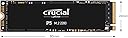
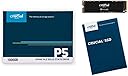
The Crucial P5 CT500P5SSD8 is a 500GB M.2 NVMe SSD leveraging advanced 3D NAND and PCIe Gen 3 technology to deliver ultra-fast read/write speeds up to 3400/3000MB/s. Designed for gamers, creatives, and professionals, it features full-drive encryption, adaptive thermal protection, and a robust 5-year warranty, ensuring high performance and reliability in a compact form factor compatible with PCs, laptops, and modern gaming consoles.


| ASIN | B087QTMXS7 |
| Additional Features | Portable |
| Best Sellers Rank | #34,238 in Computers ( See Top 100 in Computers ) #279 in Internal Solid State Drives |
| Brand | Crucial |
| Built-In Media | Internal M.2 SSD |
| Cache Memory Installed Size | 500 GB |
| Color | Black |
| Compatible Devices | This drive is compatible with desktops and laptops that accept PCIe NVMe Gen 3 drives |
| Compatible Video Game Console Models | Sony PlayStation 5 |
| Connectivity Technology | NVMe |
| Connectivity technology | NVMe |
| Customer Package Type | Standard Box |
| Customer Reviews | 4.7 out of 5 stars 3,287 Reviews |
| Data Transfer Rate | 3400 Megabits Per Second |
| Digital Storage Capacity | 500 GB |
| Digital storage capacity | 500 GB |
| Enclosure Material | Aluminum |
| Form Factor | M2 |
| Global Trade Identification Number | 00649528823304 |
| Hard Disk Description | Solid State Drive |
| Hard Disk Form Factor | 2.5 Inches |
| Hard Disk Interface | NVMe |
| Hard disk form factor | 2.5 Inches |
| Hard disk interface | NVMe |
| Hard-Drive Size | 500 GB |
| Hardware Connectivity | PCI Express 3.0 |
| Hardware Platform | Linux, Mac, PC |
| Installation Type | Internal Hard Drive |
| Item Type Name | 3D NAND NVMe M.2 SSD |
| Item Weight | 0.02 Kilograms |
| Manufacturer | Crucial |
| Media Speed | 3000 MB/s |
| Mfr Part Number | CT500P5SSD8 |
| Model Name | CT500P5SSD8 |
| Model Number | CT500P5SSD8 |
| Number of Items | 1 |
| Read Speed | 3400 Megabytes Per Second |
| Special features | Portable |
| Specific Uses For Product | Business, Gaming, Personal |
| UPC | 649528823304 |
S**.
Good quality for a good price.
Excellent quality. Easy to install. Work perfectly with my laptop Lenovo Yoga 520 14IKB. It increased considerably the speed of my computer. I recommend this product.
A**A
Perfect as Expected!
Perfect as Expected!, Heavey dutey usage!
D**.
Crucial P5 500GB 3D NAND
Good product
U**1
Great
Great
P**R
Good
good
A**M
Fast as expected. Easy to Clone your OS
The SSD is operating as expected. It is fast and everything is great. I have been mulling over this upgrade for over 5 months now. I needed something faster than a 7200 rpm HDD to support my local server installations. This solution is working just fine. What surprised me most was how easy it was to copy over my windows installation to the new SSD from my existing HDD. Login to the Crucial website and download the Disk clone utility. Crucial has provided Adonis for the disk clone. After installation of the software suite, just select the source and destination and hit go. I had about 300 GB to be copied over and that took about 3 hours. I rebooted my PC and manually entered the boot menu (press F2 on ASUS while on the startup screen). Now there were two entries. I selected the second boot option and changed the boot order. And that is it, Windows booted up on the new SSD which had arrived 4 hours back. No hassle of installing the drivers or supporting software. Everything copied over just as is. All my projects and even the RDR2 save game was copied over with success. Next step was to just re-format the HDD and I was done with the upgrade.
R**R
Bastante rápido , calidad precio inmejorable.
Lo tengo desde hace más de 6 meses, y sin ningún problema. Va super rápido, si vienes de un ssd normal, notarás mucho la diferencia de carga y trabajo. Nada que envidiar a los SSD Nvme samsung, calidad precio son inmejorables. Actualizo: Cada días más contento, tengo la versión de 500gb, más de 5 terabytes escritos, y me marca vida útil 100%. Si pudiera cambiarlo, ampliaba a la versión de 1TB. El próximo será el P5Plus, preparado para Gen4. Si andáis con SSD Sata III normales y lo utilizáis para ofimática o navegación Web, no vais a notar diferencia, pero si movéis gran cantidad de archivos, y con un gran tamaño, RECOMENDADISIMO. Nada que envidiar a otras marcas.
H**N
ممتاز
ممتاز
R**K
You Do Not Know What You Are Missing UNTIL You Add This To Your Computer
The Crucial P5 500GB HD (3400/3000MB/s) did what was asked and more. It definitely made our office HP 15-cs3073cl laptops all around better performing. It is a really decent laptop, but the hard drives (1TB 5400rpms are garbage). It was an easy way (cost efficient as well) to upgrade a our laptops (that supports NVME M.2 with a M Key - the little slit on its end. There are B keys, M Keys and B/M Keys on different M.2s) so you are way ahead of most admin/staff laptops in school districts. Now, I have this super fast Crucial HD as my main hard drive and the old 1Tb 5400rpm HD as by back up. This is great because I have speed and still space to store pictures and videos, etc.. So, if you have a laptop and it can use a MVME M.2 HD w/ a M-Key, do not hesitate to purchase this one. A+ Product. UserBenchmarks: Crucial's P5 500gb M.2 got a score = 258% (exceptional.) My WD Black SN750 NVMe PCIe M.2 1TB got a 283% (exceptional.) My Samsung 860 Evo 500GB got a 118% (Outstanding). My WD Blue 1TB (2012 - 102% Outstanding. The original HP15 WD WD10SPZX-00HKTT0 (5400rpm) got a 61.7% (Good...BUT IT IS SO SLOW next to a SSD or M.2.) If this was a grading scale...a 61.7% is not good it is barely passing in education. Plus, it is really easy to see the difference. Startups, downloads, and updates take FOREVER on the the 5400rpm HD. If you have never updated your drive...then you do not know what you are missing. Just saying.... Side note: This is the easiest area to cut costs when purchasing a laptop/computer and EASIEST way to update it on a budget and still save money in laptops and computers. Ram is another area. Crucial makes both. Latops - you typically can't upgrade much other than the HD and RAM. Most higher end laptops have some wiggle room, but not in all cases. When you buy it...if they give you "upgrade options"...then you know where you can add or subtract down the road. Keep in mind that in some cases they even solder the RAM to the board - which makes it difficult to do much there. To Clone: Crucial makes it easy. All you have to do is... (You must have a M.2 connection and a SATA connection. At least one of each to do the following. Otherwise, you will need to search online on how to clone your hard drive with what your present setup looks like.) Most laptops and computers have at least 2 connections. One may be M.2. If it is not, then do not but this hard drive. You can use my directions below, but not with this hard drive. 1.Download the Software and Install it: Acronis True Image for Crucial (other brands have the same thing also) - do a search Crucial Clone Software. 2. Install the new hard drive. DO NOT REMOVE your old hard drive at this time. Please leave your old one in as your MAIN still. Let it boot up. 3. Find your NEW HD. It can be found by running DISK MANAGEMENT on your computer and formatting your new drive to add it to your computer. (It should be found under "THIS PC" shortcut on Win10. 4. Make sure your new hard drive is the same size or larger than your old one. (Remove some programs that are easily reinstalled - like video games if you need a little space.) You want to CLONE everything over to the new one. I went from 500gb to 500gb...the amount moving over was smaller than the new empty hard drive. I deleted a couple of video games too - off the record of course. :) 5. Start Acronis software and Clone (under tools) your old one onto the new one. If the old one is a 5400rpm HD...go eat lunch or dinner. You will have some time. Our 500gb - 5400rpm HDs took about 30-45mins. A 500bg 2.5 SSD - 10 minutes max from start to finish. 6. Once it is cloned, turn off your computer and either disconnect the SATA connection or take out your old hard drive. Start up your computer and it will find the new hard drive. If the process results in a corrupt set of files on boot, I did not mess with it. I reinstalled my old one and booted from it and formatted the new drive and started over. (I was not wasting time "fixing" a fresh CLONE. Who was to say other errors might not show up later?) I wanted to be safe versus sorry. Shortcuts get me in trouble sometimes. 7. Once you are ready to boot form the new drive, disconnect the old one again. If it boots, then it should be your main one now for booting. 8. You can shut it down and reconnect or install the old one and it should be your backup drive now. Go to "THIS PC" and see which one is your "C" and which is your "D". If it is not correct, you should have noticed the load up time in the beginning was ridiculous if using the 5400rpm and/or it is labeled as "C". How do know which is which? Well, once I clone my original drive, I delete something off of it to make it smaller. Secondly, I look at the total sizes. Typically those are not identical. In my case, one is 464gb and the other is 931gb. Pretty easy for me to tell them apart.) 9. If everything worked out and the M.2 is now your main drive, then you are good to go! Enjoy. 10. If it did not work, then you will need to shut your computer down and go into your bios. If you do not know how to get into it...look it up. Some are f2, others are f8 or F12 and mine was F10. 11. Hold the specific F-key down when you restart it and enter the bios. You will need to change the HD boot order. It needs to be your M.2 first and then the other drive. Save your progress and restart. 12. Check how fast it starts up. Then check "This PC" if it is correct, then all is well. 13. If it is not...then you probably did not save your work when you entered the bios. Try that again. 14. Most of this can be found on the internet as well. Best of luck. THANK YOU, CRUCIAL for making my upgrade EASY.
Z**X
Ziemlich gut aber nur mit zusätzlicher Kühlung
Nachdem sie jetzt endlich auf dem Markt ist, habe ich mir die Crucial P5 in der 500 GB Version gekauft. Zum direkten Vergleich besitze ich auch eine Samsung 970 EVO Plus mit 500 GB im gleichen PC. Unter Windows 10 liegen beide SSDs im CrystalDiskMark in Summe fast auf Augenhöhe (mit dem Samsung NVMe-Treiber v3.3), siehe Bilder. Im AS-SSD Benchmark liegen die Werte der P5 sogar etwas höher als bei der EVO Plus: Crucial P5 read = 2530, write = 2520 EVO Plus read = 2510, write = 2330 Wer die P5 unter Windows 7 betreiben will, benötigt zwingend den aktuellen x64_Legacy NVMe-Treiber von 'Micron' (Crucial=Micron), da die P5 mit dem Microsoft NVMe Treiber KB2990941 extrem schlecht performt (bestenfalls nur noch halbe Geschwindigkeit!). Außerdem stürzt der Microsoft Treiber auf vielen W7-Systemen mit einen 007E BSOD ab, wofür man dann auch noch den Hotfix KB3087873 benötigt. Um den aktuellen 'Micron'-Treiber v2.1.15.56 (enthält W10 und W7 Treiber) zu erhalten, muss man bei Micron einen Customer-Account anlegen. Bei 'Crucial' selbst findet man keine NVMe Treiber, außer der Crucial-Storage-Executive SSD-Software, die zwar fehlende Treiber anmahnt, aber selbst nicht downloaden und installieren kann. Wenn im Betrieb der Cache der P5 voll ist bricht die Schreibgeschwindigkeit kurz ein und stabilisiert sich dann aber bei rund 2000 MB/s Steady State (siehe Bild), sofern sie noch 'reichlich' leere Zellen hat. Allerdings geht es mit der Schreibrate steil bergab wenn sie zu heiß wird. Die P5 wird ebenso wie die 970 EVO Plus sehr schnell sehr heiß! Aber immerhin erreicht sie eine Steady State Geschwindigkeit von sehr guten 2000 MB/s und deswegen habe ich sie mir gekauft, denn ich benötige sie zum Cachen in einem 10 GBit/s Netzwerk. Die EVO Plus kann ich dafür nicht brauchen, denn die bricht schnell auf eine Steady State Phase von 800 MB/s ein. Im Standby bei offenem PC-Aufbau (Raumtemperatur 20°C, keine Kühl- oder Wärmequellen in der Nähe) erreicht die Crucial P5 bei mir nach kurzer Zeit rund 47°C, nahezu identisch mit der EVO Plus. Bereits wenige größere Schreibvorgänge oder Benchmark-Tests lassen die Temperatur rapide ansteigen und bei finalen 75°C bremst die Crucial dann auf SATA-III Geschwindigkeit herunter. Die 500 GB 970 EVO Plus kann unter allen Konditionen inclusive Thermal Throttling immer noch knapp 750 MB/s halten, die Crucial P5 fällt da aber deutlich unter 500 MB/s ab. Bei guter Kühlung mittels Cryorig Frostbit oder Sabrent Rocket Cooler gibt es aber bei beiden überhaupt keine thermische Drosselung. Mein Fazit: die 500 GB Crucial P5 performt in manchen Punkten sogar besser als die 500 GB 970 EVO Plus und ist aktuell rund 15% billiger. Aber ohne vernünftige zusätzliche Kühlung wird sie ebenso wie die EVO Plus ziemlich schnell zur Spaßbremse.
Trustpilot
1 week ago
1 day ago