Buy anything from 5,000+ international stores. One checkout price. No surprise fees. Join 2M+ shoppers on Desertcart.
Desertcart purchases this item on your behalf and handles shipping, customs, and support to Japan.
โก Dominate every move with speed and style โ the ultimate pro gaming keypad!
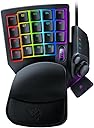
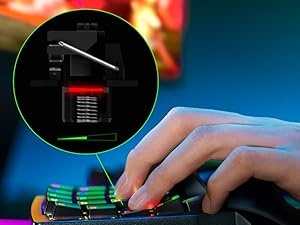
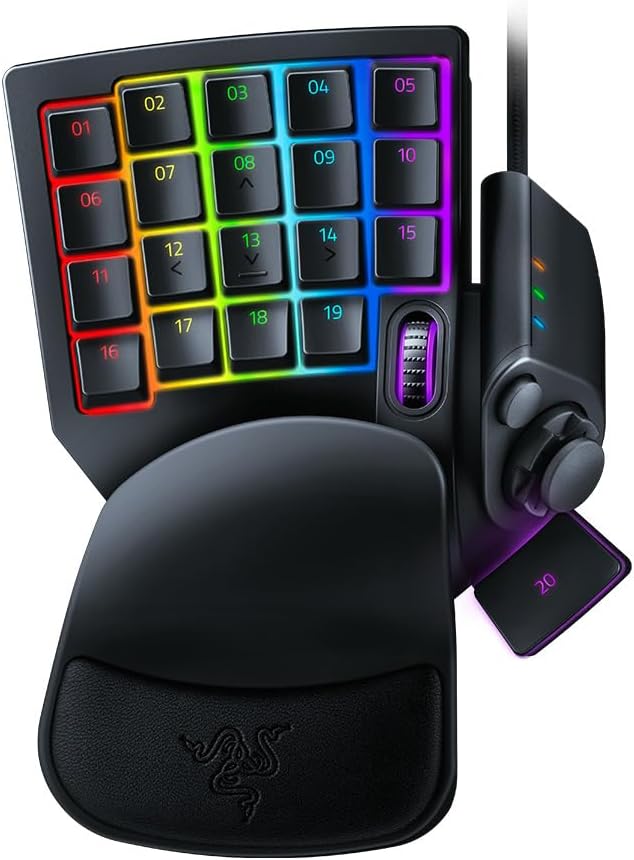
The Razer Tartarus Pro is a cutting-edge gaming keypad featuring ultra-fast analog-optical switches with adjustable actuation and rapid trigger reset at 0.1mm. It offers 32 programmable keys and an 8-way thumbpad for versatile control, enhanced by fully customizable Chroma RGB lighting that syncs across multiple devices. Ergonomically designed with a wrist rest and ambidextrous layout, itโs built to elevate both competitive gaming and creative workflows.


| ASIN | B07YQKS4B5 |
| Additional Features | Backlit, Ergonomic, Programmable Keys, Volume Roller, Wrist Rest |
| Antenna Location | Gaming |
| Best Sellers Rank | #186 in Video Games ( See Top 100 in Video Games ) #5 in PC Gamepads & Standard Controllers |
| Brand | Razer |
| Built-In Media | Keyboard |
| Button Quantity | 32 |
| Color | Classic Black |
| Compatible Amazon Tablet Models | Amazon Fire 5th Generation, Amazon Fire 7 5th Generation, Amazon Fire 7 7th Generation, Amazon Fire 7 9th Generation, Amazon Fire HD 10 5th Generation, Amazon Fire HD 10 7th Generation, Amazon Fire HD 10 9th Generation, Amazon Fire HD 8 5th Generation, Amazon Fire HD 8 6th Generation, Amazon Fire HD 8 7th Generation, Amazon Fire HD 8 8th Generation |
| Compatible Devices | Gaming Console |
| Compatible Operating System Family | Android, Linux, Windows |
| Connectivity Technology | USB |
| Customer Reviews | 4.3 out of 5 stars 4,499 Reviews |
| Enclosure Material | Plastic |
| Generation | 2 |
| Global Trade Identification Number | 00811659035318 |
| Hand Orientation | Ambidextrous |
| Item Dimensions L x W x H | 5.95"L x 7.96"W x 2.5"H |
| Item Weight | 0.8 Pounds |
| Keyboard Backlighting Color Support | RGB |
| Keyboard Description | Gaming |
| Keyboard Layout | QWERTY |
| Manufacturer | Razer |
| Mfr Part Number | RZ07-03110100-R3U1 |
| Minimum Required Operating System Version | Android 14.0, Mac OS 14 Sonoma, Windows 11 |
| Model Name | Tartarus Pro |
| Model Number | RZ07-03110100-R3U1 |
| Number of Keys | 32 |
| Number of Sections | 1 |
| Power Source | Corded Electric |
| Recommended Uses For Product | Gaming |
| Special Feature | Backlit, Ergonomic, Programmable Keys, Volume Roller, Wrist Rest |
| Style Name | Tartarus Pro - Optical Switches |
| Switch Type | Razer Analog Optical Switch |
| Theme | gaming |
| UPC | 811659035318 |
| Unit Count | 1.0 Count |
| Warranty Description | 2 year manufacturer |
C**R
Works GREAT with small hands! Records double modifiers! +6m, +1year, +2.5 year updates
I have small hands, 6.5 inches from palm to middle finger tip and ring sizes 4.5-6. I'm able to use this but I did need to shift my hand position to the right so I could use the thumb buttons. I swaped the directional keys to correspond and added some textured gaming keycap stickers to help me learn the new keybinds. I am able to use all of the buttons easily except the top row which requires a little stretch to reach but that's fine with me, I just make those the seldom used keybinds. I needed more pinky modifier buttons as well as thumb accessible modifier buttons (the D-pad is perfect for that). I use this for gaming along with a G600 mouse, it works wonderfully and solved the problem I was having with needing more modifiers and being able to hit binds faster/more reliably. You can record double modifiers with this such as Alt+Shift, I needed that feature specifically. It looks amazing matching my mercury huntsman mini and I love having a separate keypad for gaming rather than using my keyboard. It allows me to have crazy re-mapped keybinds without losing the ability to type normally. I use W A,S D,Q, and E; all the rest of the keys are re-mapped to numpad or modifiers. The space bar key (20) is a bit low and the distance makes it unreliable for me to use quickly so its in the seldom used keybind category. I re-mapped the circular button above the D-pad to map, the D-pad is space bar and 3 modifiers. The little D-pad thumbstick attachment is really great, too! <> - 6 month update- I absolutely love this thing. I've adjusted to using it all the time for gaming and it is so incredibly comfortable. The wrist rest is my favorite part in regards to comfort and the hand positioning in general is relaxing, the shorter keycaps help with this. I found some better gripy texture tape for my most used keys. The joy stick for the D-pad has become pivitol for my gameplay. I love this thing so much that I got a second one for couch gaming. Synapse 3 doesn't support 2 of the same device running at once so I had to get a USB splitter. I purchased both devices "Used like new" and they have been wonderful. Both arrived in perfect condition with no blemishes or malfunction. - 6 mo th update on the second I purchased in "Like New" Condition. One of the keys broke out of nowhere while I was using it. The device had not been damaged while in my care. Razer does not sell replacement keys for this item and refuses to provide them. Keys are not covered in the warranty, so if they break you are out of luck. However, I was able to find these keys on Amazon that replace the low profile Tartarus keys perfectly -amd they are very affordable: X-keys Keycap Cherry MX Compatible -2.5 year update: STILL AWESOME lol. No issues whatsoever. I have 3 now, send help. I made the #20 thumb usable by making a booster seat for it. Took off they key and traced it on firm 1/4 inch thick foam, cut out the exact shape (took a little notch out to keave room for the D-pad thumb stick to clear it), then doubleside taping it to the key- works like a charm now. I use the Tartarus for every game ( FPS, MMO, Competitive) and will never go back to using a keyboard for gaming.
S**N
The Good The Bad & Fixes
Ok so starting off, i switched from using logitechs gamepad for 15 years. Their decision to remove support and start charhing subscriptions for software just rubbed me wrong so now its time to change after my joystick started to die. So i'll go over good first then the bad as well as solutions for some of the bad. Good: Functions great. The sensitivity settings for button presses is amazing! Rly ups my in game reflexes being able to barely touch buttons to use them. I also love the idea of the scroll wheel on the gamepad, great for if a mouse scroll wheel is acting up. Additionally the silent button presses is great for me.. clicky clack drives me nuts when gaming as i feel like im disturbing others. I also love the size of the joystick as i have big thumbs and the cushion is great for my wrists. Bad: So some of this is just user error and preference but i did find solutions for most of it which i will go into detail on. Almost all of my issues involve the joystick. So i use mine for movement not hotkeys as it frees up three fingers that way. When using it for movement dont change it to 8 directional as theres a bug where it cant do 360 movement as it wont read the diagonals. If you are like me and curiously thought to check it out but went back to 4 directional you will need to restart your computer after switching back to 4 direectional as without the computer restart the bug on the diagonals will still be there. So tldr: 4 directional allows 360 movement but 8 does not and if you switch to 8 and then back to 4 it needs a pc restart to read properly again. point 2 is the joysyick is slippery as hell, so my solution was getting a ps5 grip cap warming it up a bit and stretching it to fit. 3rd point is the clicking. everything else on the gamepad is silent i wish the joystick was too, even an option to adjust the clicking would be nice, much like what some of their mice can do. when i first got it buttons were a little stiff so took some muscle memory adjustment and a bit of use to loosen em up. not an issue long term just a point to keep in mind when u first get it. with the sensitivity setting anyways it only affected me ehen holding buttons down til they loosened up. Having used logitech's for years i do miss the screen with the performance monitor on it as well, but i have other eays of doing that so not a huge loss. ok final point is the scroll wheel. its location is terrible, it sits right under the joint between the thumb and pointer which is not easy to reach. Putting it to the left of the 09 or 10 button would be a better spot making it easier to use as frankly my pointer finger and thumb dont bend that way for the current placement. all in all amazing gamepad just needs some minor tweaks to make it perfect.
B**N
Good keypad with a few nitpicks
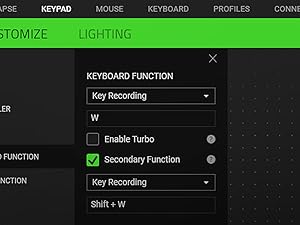
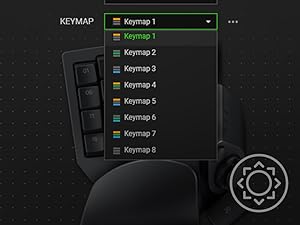
The Razer Tartarus Pro is essentially a gamer-ified macro pad with a few extra buttons and features. It has an 8-way directional programmable thumbpad, scroll wheel, and separate button for cycling between profiles. Every button or method of input is fully reprogrammable to a number of functions including the alpha-numeric section, navigation keys, F keys, mouse buttons, and controller buttons. This also supports Razer Hypershift for a second layer of functions. Before we get to the main meat of my criticism of the Tartarus Pro here are some minor nitpicks: -The way you adjust the wrist rest is by pulling it off the board and reattaching it to a second set of holes. This feels cheap and the adjustability is limited to two positions -The keycaps are cheap lasered ABS that are unable to be replaced due to their unique size and profile -The distance between the main area of the keypad and the "spacebar" key is too far and hitting it is uncomfortable -The build is made entirely of plastic and feels a bit cheap for the price you pay What makes this the "pro" version is that it comes with analog capability in the main 20 switches. This allows for analog stick-like input from a keyboard such as walking slowly or turning in a vehicle. By that nature, the switches are also contactless making these switches extremely smooth and excessively reliable at an estimated 100 million key presses. What is arguably the best thing about analog is the ability to adjust the actuation point of the keys. Although Razer has since come out with a new Huntsman that is also analog, the old Huntsman's biggest issue was that the switches were too light for the insanely high actuation point on them leading to consistent accidental key presses. The Huntsman did have contactless optical switches at that point but did not have analog capability so the actuation point could not be lowered. By comparison, the Huntsman's biggest competitor at the time the SteelSeries Apex Pro, did have analog capability and more importantly had adjustable actuation. The Tartarus Pro has a couple things going for it that the Apex Pro does not. First being that it's cheaper by about $80-$90 depending on current sales but has the same analog capabilities. Secondly, the Tartarus Pro doesn't actually replace your whole keyboard which is better for both money and space saving. That being said, this does bring me to one of my biggest gripes on this keypad and that ironically enough are the switches themselves. In an effort to what I can only assume is accommodating for the new analog capability, Razer has made these switches much stiffer. While this is a largely personal issue, I will explain why stiffer switches in this particular case is such a letdown. These Razer analog switches are linear meaning that there is no tactile feedback throughout the entire key travel. While this is good for analog capability, it does mean that it becomes much easier to bottom out. In the case of the Apex Pro, this isn't an issue as the switches themselves are fairly light and the actuation is adjustable making it much more comfortable to bottom out. The first Razer Huntsman had a similar weighting for their linear switches but were let down by the unnecessarily high actuation point that could not be adjusted. Were this still the case for these stiffer switches it would have slightly mitigated the problem of accidental actuation; however, these new switches can be adjusted so the addition of stiffer switches makes no sense from a practical standpoint. I assume that they made them stiffer so it can be easier to utilize the actual in-game analog but in my experience it isn't any easier than doing it on a lighter switch. Now you have the problem of analog switches which solves the first problem but then creates another by being too heavy and uncomfortable to use for long periods of time. These would be even worse were it on a full keyboard that you type with but since it's just a keypad it isn't as bad. I tried looking for the weighting and force curves on their official website but it makes no mention of them anywhere from what I can tell. What I can say is that these new switches have a black slider instead of a red one so I assume they have a similar feel to other linear black switches such as Cherry MX Black, Gateron Ink Blacks, etc. For this reason alone I think the Apex Pro still has the better switches based purely on the fact that they aren't as stiff. My final criticism is that almost every feature on this keypad is tied to Razer Synapse. Programming lighting, remapping keys, adjusting the actuation, setting the dual stage actuation, and creating profiles are all locked behind Synapse. This wouldn't be such a large issue were the software not unrelentingly terrible and slow. Synapse is the second most memory consuming program on my PC purely by virtue of not being Chrome. Not only does the program itself run at about the same speed as a geriatric snail, the only way for the features of the keypad to actually function is to have the software up all the time in the background therefore always eating up your RAM. I can understand needing the software to program the analog, program lighting, and remap the keys, but to require it just to be able to use the remapped profiles seems like unnecessary integration. This also means that if you don't have the software installed on an SSD, it will take forever to launch on startup which only furthers the issues from not having the software up and running. Luckily, once the software actually is running, it isn't very obtrusive and does not get in the way of gaming or any other use-case scenario. My final thoughts on the Razer Tartarus Pro is that it's a good keypad with good customizability and extremely smooth switches but is largely held back by the unreasonably stiff weighting and the unholy omen of eternal torment that is Razer Synapse. If they ever make another version with lighter switches at the same price point that would solve 99% percent of my issues with this keypad. For now, while I wouldn't say it would be a bad decision to buy this for it's retail price, I would wait for it to go on sale.
A**E
Master Your Game with the Razer Tartarus Pro Gaming Keypad
Calling all gamers! Get ready to level up your gameplay with the incredible Razer Tartarus Pro Gaming Keypad. Designed to enhance your gaming prowess, this beast of a keypad boasts analog-optical key switches, customizable RGB lighting, and a plethora of programmable keys. In this review, we'll explore the gaming-centric features of the Tartarus Pro, helping you dominate the virtual battlefield like a true gaming pro. Unleash Unprecedented Precision: The Razer Tartarus Pro introduces a game-changing innovation: analog-optical key switches. Imagine having the finesse of an analog joystick right at your fingertips. These switches register varying levels of pressure, offering unrivaled control and precision. With this cutting-edge technology, your movements will be more fluid, your aim dead-on, and your gameplay next-level. Prepare to leave your opponents in the dust! 32 Keys of Pure Customization: Say goodbye to limitations and hello to limitless possibilities. The Tartarus Pro comes equipped with a whopping 32 fully programmable keys, begging to be customized to suit your gaming needs. Assign macros, execute complex commands, and create shortcuts to optimize your gameplay. With this level of customization, you'll have the upper hand in any gaming situation, whether you're exploring vast fantasy realms or battling it out in intense multiplayer arenas. Ergonomic Excellence: The Tartarus Pro not only delivers in performance but also in comfort. Its ergonomic design ensures that even the longest gaming sessions won't take a toll on your wrists. Every key is within easy reach, allowing for lightning-fast reactions. And let's not forget the 8-way directional thumbpad, designed for console-style movement control. It's time to bid farewell to discomfort and embrace the ergonomic bliss of the Tartarus Pro. Create Your Gaming Aesthetic: Who says gaming can't be stylish? With the customizable Chroma RGB lighting, the Tartarus Pro lets you create a visual spectacle that matches your gaming personality. With support for 16.8 million colors and individually backlit keys, your setup will be a mesmerizing display of light and color. Immerse yourself in a vibrant gaming environment that syncs with your favorite games, Razer peripherals, and even Philips Hue lighting. Prepare to game in style! Unleash the Full Potential with Razer Hypershift: Take your gaming to the next level with Razer Hypershift. This game-changing feature allows you to remap all keys and keypress combinations, opening up a world of advanced functionality. Execute lightning-fast combos, create intricate commands, and adapt to any gaming scenario with ease. The Tartarus Pro empowers you to be the master of your game, giving you the ultimate control and flexibility. Conclusion: The Razer Tartarus Pro Gaming Keypad is a true game-changer, designed to enhance your gaming experience and elevate your skills. With its analog-optical key switches, customizable RGB lighting, ergonomic design, and fully programmable keys, this gaming keypad is the ultimate weapon in your gaming arsenal. Dominate the virtual battlefield, unleash your gaming potential, and immerse yourself in a world of precision and customization. Gear up with the Razer Tartarus Pro and leave your mark as a true gaming legend. Get ready to level up!
T**G
Great for World of Warcraft
Bought the optical version for use in World of Warcraft and overall I am very pleased. Here are some general notes: - It takes a little while to get used to the positioning, but the ergonomics are actually quite good. I wear medium gloves and I can very comfortably access most of the keys. The ones on the far upper corners are a bit of a stretch, but I bind lesser used abilities to those. - One exception to the comfort is the 20 key by the thumb. It is overly awkward for me to spread my wrist to be able to use it consistently for jumping (the default) and I never use it. However, a useful workaround is to rebind the profile switch key above the D-pad which works extremely well for jumps. Makes for a much more comfortable ergonomic experience. - The wrist pad is comfortable and is surprisingly durable. Used it for about a year and there is no visible wear, and I have been able to keep it clean with the occasional alcohol wipe down. - The software makes the device highly configurable and works easily enough. - I bought the linear switch version although I think I would have been just as happy with the mechanical one. You could bind different actions to light and full presses of each key and the action is robust, reliable, and configurable. However I have not found a great use case for it yet so I just run single binds to each key. The upside with single action is that you can set the depth when they key is activated to prevent accidental presses when you are either resting your fingers on the button or brushing them while building new muscle memory. The unit seems like it has excellent durability so having the extra features and configurability is an investment in the long run. If anyone is curious, here is how I use the controller in World of Warcraft: - I use the 8, 12-14 keys are my WASD home for movement with the profile switcher key for jump (also reflected in their Razer software binding) - The 16 key is bound to Shift with the rest of the keys bound to the numpad keys in the Razer software - Using the Bartender mod in WoW, I created two 5x4 grids that map 1:1 to the buttons on the controller (see photo) - In WoW, I bound the left bank to unmodified keypresses corresponding to the button location and the right bank to Shift+ key presses corresponding to the button location. - The bottom left and bottom right buttons that do not have any activating key presses assigned (16 is bound to Shift and there is no physical button to the right of 19) are assigned to mouse keys. - I bound Shift+W key to autorun which seemed natural Using this configuration, it allows me to: - Have a visual connection to the physical location on the keypad that aids in training and recall - Double the amount of action keys by using the Shift modifier on the 16 key - I use the "dead space" of where the middle 8, 12-14 keys are that are reserved for movement to be used for things that do not need to be bound, like buffs, food, or miscellaneous pots. - The spots for Shift+movement keys (8, 12-14) are useful for things associated with movement like mounts or emergency actions like floats if you get knocked off something I feel like I have plenty of keys for actions, especially if you use macros to combine common actions and trinkets together.
G**F
The Least Comfortable Keypad You Will Ever Use
My hands aren't small - I can comfortably hammer away at any 10th on a piano. But trying to use this keypad for a few days, I've come to believe it's designed for aliens with 5 incredibly long sausage fingers plus a thumb. THE GOOD: - It's almost fully customizable. The scroll wheel can't have any macros assigned for some reason, but everything else can go anywhere else. - You can disable the RGB lighting. - It doesn't have any garish color schemes or branding and it comes in black, like everything else. - Keyswitches are high-quality and should last a long time. - Braided cable. Always nice to have that. THE NEUTRAL: - The keyswitches are linear with no feedback. No tactile bumps, no satisfying clicks. If you're familiar with typing on an office keyboard or pressing buttons on a controller, this will feel wrong to you. THE BAD: - Everything but the keyswitches and keycaps feel weak, flimsy and wobbly. - The wrist rest forces your hand to sit at an angle that is not perpendicular to the keypad. This is due to the "hump" that accommodates the scroll wheel. Removing the wrist rest is possible, but doesn't alleviate the issue and makes the device somehow even more uncomfortable to use. You're guaranteed sores, cramps and RSI if you use this for more than a week while resting your hand on it. - The scroll wheel, which has too-subtle detents and a slimy rubbery texture, cannot be reached in any comfortable position unless you move your entire hand or have an extra index finger. The smarter place to put the scroll wheel would be near the thumb cluster. Someone wasn't thinking when they designed this. - The keys are oversized, apparently designed for incredibly thick sausage fingers. If this describes you, you still might want to look elsewhere. - The only key with a legend on it is #13, which is where "S'" would be in WASD. This is a problem because the keys caps are huge, all feel the same and you generally if the device was properly designed in the first place - shouldn't move from that position anyway. The smarter location for legends would be the keys farther out away from the WASD cluster, so you can feel them out as needed. - The directional pad is unpredictably responsive, mushy and works like a joystick hat out of the box, but feels flimsy enough that it would break if you looked at it wrong. - The device HAS NO INTERNAL CONFIGURATION MEMORY. YOU MUST KEEP THE RIDICULOUSLY BLOATED SOFTWARE RUNNING IN THE BACKGROUND AT ALL TIMES FOR YOUR CONFIGURATION TO WORK. Logitech could figure that one out, why can't "For Gamers, By Gamers" Razer manage it? Spend more on your product development and less on your box designs, guys. - The macro module's functionality in the software is too simplistic for what it pretends to offer. You can program sequences of key presses with delays between them, but that's it. No toggles, no loops, no conditionals or modifiers, nothing. Just a sequence of specific key presses, and only one macro per key, but only as long as that key isn't arbitrarily "special" like the scroll wheel. Not expecting AutoHotKey depth of customization, but at the bare minimum, a toggle option is expected. I'm returning the one I bought and staying away until I see some marketing with special care taken to acknowledge how awfully their previous products were designed.
B**R
Registers as xbox 360 controller
Really like this thing, razers software can be annoying but it's better than icue and ghub at least, though that's saying far less than nothing lmao. !!! Very important thing to note though, the tartarus registers as an xbox 360 controller, which 99% of the time doesn't matter, but had I known this sooner it would have saved me some headaches. For example had a lot of trouble trying to play a game on steam play together because there was seemingly a phantom controller occupying the player 1 slot, so I couldn't do anything with my actual controller, which after a lot off struggle is where I learned it was because the tartarus is registered as a 360 controller. Also sometimes a game will be stuck showing or switching between pc and controller button prompts/inputs, which is also due to this registering as a controller. Provided you have a decent keyboard (I didn't for a long time lol), you can just unplug the tartarus and use the keyboard for the rare occasion this poses an issue. Otherwise love it for gaming and photoshop/that type of software. Main point of glory is the thumb stick, which isn't actually a thumb stick, but having 4-5 buttons easily pressable by your thumb as opposed to only the space bar is amazing. Always use it for my stance/movement keys and love it so much (crouch, slide, jump, prone, whataver stuff like that). Also having the scroll wheel bound to brush size is great. Just so sad that the white one wasn't available yet when I got mine a couple years ago. Now I'm probably gonna have to waste another $130 at some point lmao
J**H
Hinders Gameplay
I was really hoping I could enjoy using this, but I just can't. I have a different game pad like this, but figured if I enjoyed the Razer one, I'd keep it at home and bring my other one to my work office once we're back to working in person. Maybe my keyboard use is weird for gaming or I'm simply used to/looking for something else than this offers, but I felt like using the Tartarus actually hindered my gameplay more than it did help. I really like having my hand well off to the left of my setup to keep my body from being super cramped up, so I've been playing around with game pads so I can keep my typing keyboard front-and-center, but use the game pad for actual gameplay. Let's break down the pros and cons, because it does have some positive features, but for me, the cons significantly outweigh the pros, especially for the price. (assuming Apex gameplay, here's the button bindings I remember since I only used it for a few days before I unplugged it and stopped using it (doing this by Column, not Row, so buttons 01, 06, 11, 16 will be first, etc) 01: Tab (hypershift: Esc) 06: disabled 11: L-Shift 16: L-Ctrl 02: 1 (I think) 07: I swapped between "Q" and "Disabled" 12: A 17: Z 03: Disabled 08: W 13: S 18: X 04: 3 09: E (Hypershift: T) 14: D 19: Either ("C" or "V") or "Disabled", but I think I made this "V" 05: 5 10: R (Hypsershift T) 15: disabled (I think) (Hypershift F, I think) Scroll wheel: normal scroll wheel actions Profile Switch Button: Hypershift D-pad Up: M D-pad Left: Q D-pad Down: B or Disabled, but I think Disabled D-pad Right: Disabled (I think) 20: Space And bindings on my mouse that I needed so I could not use my full keyboard: V (melee) B (change weapon fire mode) G Pros: - Firstly, I, personally, really loved the way it felt under my hand. I've got larger hands, so the shape and overall positioning of the d-pad and wrist rest were absolutely lovely - Secondly, it connects with Razer synapse 3. Considering my main keyboard is the Blackwidow Chroma v2, I thought having a game pad that would match my color setup and be able to interact between each other would be great (since only other Razer products can do things like change the profile or preset) - Thirdly, it genuinely felt like it had fairly solid construction relatively on-par with the Blackwidow Chroma v2 and the Sabertooth 360 controller I have. - Fourthly, for specifically the d-pad, the placement was SO comfy for me. I know my first point mentioned it, but specifically the d-pad was just perfectly placed, and felt quite easy to manipulate and click without necessarily accidentally clicking an incorrect direction and unfortunately, that's about where the pros end for me. Cons: - Firstly, the overall design. outside of my body enjoying the wrist rest placement and the d-pad placement, everything else feels horribly misplaced to me. The "space bar" is super difficult to click, so difficult in fact, that it was often painful to use. (since the "natural" placement of my hand was around the d-pad or on the button above the d-pad, I would often bump the d-pad trying to hit space to jump in Apex, and considering where my hand rested, the travel distance just to *touch* the space bar let alone click it was way too far to be comfortable). - Secondly, the actual keyboard keys. they're all the same size. I knew this when purchasing and didn't feel like it would be that big of a deal, considering it was hopeful the ergonomics would be comfy enough to get over it. but unfortunately, for me it was not. all the keys feel exactly the same. This wouldn't be as bad if the raised portion of the key (like on "F" and "J" of a normal keyboard) was in a different position, but my "neutral/resting" position for gaming on a keyboard is with my fingers on L-Shift, A, W, D, and Space, so moving my middle finger down to make sure I was 'centered' just wasn't going to cut it. this meant I was often not properly re-centering myself if I did a reach to hit a specific button, or had to pull my hand off the game pad for a moment. normally this would be a minor inconvenience, but mid fire fight for a PvP game cranks this up to a major issue - Thirdly, and going along with point 2, is trying to hit other keys in between movement. Running to cover and trying to equip a grenade? not bad if you bind grenades to the d-pad or a mouse. but the location of the buttons means that you have 1 column of keys on each side of your 3 movement key columns. so sure, you can bind "F" to "G" (positionally speaking on Tartarus), but then you have to put "F" somewhere else, too. not to mention that quick movements mid fight, especially when trying to do things like jump, would often cause me to tap the button next to "D", which meant I was accidentally pinging "enemy here" constantly. I ended up needing to turn off 1/4 to 1/5 of the keys for Apex just so I wouldn't accidentally bump half of them. (or bind the same key multiple times in Hypershift so I could have full functionality but not bump things on accident) - Fourthly, and this is one of the most disappointing points, the D-Pad does NOT work well as a joystick at ALL. in Synapse 3, it clearly supports both 4 and 8 direction inputs (separately, which was actually really cool), and considering normal PC M&K gameplay is, for all intents and purposes, 4-8 direction movement anyway, I didn't think this would be a big deal. I was very wrong. 4th Con sub-cons (yes, they're that major): - 4a: at first test, the d-pad genuinely does "work" to move your character in the 8 main directions. but other than that, it's basically unusable (for me, at least). both fast and slow movements in the Apex Firing Range had my game pad slipping and sliding a small but noticeable amount on my desk, so at least for me, without "bolting" down the Tartarus, I knew that wouldn't be a solid option for me - 4b: the drivers.... OH MY GOD the drivers. I've been using various console controllers for YEARS on PC. MS official 360 controller (wired) and PS4 official DualShock 4 on Mac, MS official 360 controller (Wired), PS4 official DualShock 4, Razer Sabertooth 360 controller, Xbox One Elite (v1) controller (wired, Windows 10 only), and the Steam Controller on Windows 7 and 10 with no issues. Windows 7 needed some 3rd party apps to get the PS4 controller to work like a 360 controller, but Windows 10 didn't seem to need it, and I liked the controllers I had enough that I didn't care anyway. But as soon as I started using the Tartarus, then tried playing games with a controller again (specifically, Godfall in the Epic store) I had issue after issue. I tend to default to my Sabertooth since I don't play my actual 360 really at all anymore, but still like the controller, but my PC refused to recognize it as Player 1. Same issue with the XB1 Elite. I think I spent a solid 2+ hours playing around with updates, drivers, and google searches to get things to work. only to realize that the Tartarus is recognized as a keyboard, an Xbox controller, AND a generic controller.... 3 separate instances in Windows 10. and every time I tried to disable it or unlink it, it would just come right back. Finally I just unplugged it, told Win10 to "forget" the device, restarted, and suddenly my controllers worked again... considering I've been playing mostly games like Godfall, where I feel more comfy with a controller than the mouse and keyboard, I haven't plugged the Tartarus back in since. and the few times I have played Apex or Realm Royale, I just plugged in my other game pad, cause I knew at least that one would work. TL;DR:/Summary: I find the only real Pros to this game pad are the build quality, which despite the plastic feels fairly solid and secure, and the color customization via Synapse 3. In actual in-game use, however, I felt that I was often held back by the design and overall limitations of the game pad rather than helped by the ergonomics I felt were (mostly) comfy. I feel this game pad would be great for everyday/office use to have a large set of macros and shortcuts at your disposal at any time, but I would definitely not suggest this to someone who wants it for gaming. I would, however, suggest, the Redragon K585 DITI for gaming. It has more buttons than the Tartarus, the shape is also fairly ergonomic (and allows for more personalized ergonomics with extra rests, etc IMO), the buttons have dedicated letters on them (even tho they're remappable) which helps for quick glances, I can "center" my WASD hand with the L-Shift key, since it's a full-sized key (and can often tell fairly quickly which key I'm about to press since things like Tab and Ctrl are all full sized, and T is pleasantly sized larger than the other keys). My biggest gripe with the Redragon, which I was hoping the Tartarus would help with (aside from being otherwise just as nice to use), is the lighting. there's really no customization outside of things like "wave" or "shift" (it would be nice to at least have it just stay at a specific color, which you unfortunately can't do). Final advice: I'll be returning my Tartarus this week; save your money or get a different brand game pad.
W**O
A niche but misunderstood product.
- This feels more useful for productivity than gaming. - Macro heaven for all your shortcuts with a single key press such as Ctrl+Shift+J - Save frequent key press sequence such as "Ctrl+Shift+P -> secretplan.com -> enter". This will open a private browser, type in the address and launch the website, with a single keypress. - Numpad for 60% keyboard users - Key switches' actuation force is towards the heavier side. Might need getting used to if you're comfortable with light switches. Does require effort for initial set up, and a learning curve to remember and get used to the set up. But when you do, you'll be a efficient machine with minimal effort. Note: You MUST install the Razer software and have it running in the background. It doesn't have onboard memory. Overall, highly recommend but please do your research before diving in.
D**E
Easy to use
really comfortable
H**R
Great for fortnite
Really good. However on my system it randomly stops working and I need to restart my PC
R**N
it's a little bit too big
it's very comfortable to use, but I can't use the wrist rest that comes with the keyboard because otherwise I wouldn't be able to reach all of the keys I need to
P**K
Fantastic product
Great product, easy to setup and start using straight away. Feels great to use, very comfortable on the hand.
Trustpilot
1 week ago
2 weeks ago